Last time we talked about creating and publishing your own game. This time it's all about the other side of the table: playing! Here at Questner we get plenty of questions about what all the buttons and menus do once you're inside a game, so we put together a quick tour of the features that can make your adventures even better. Short and sweet, we promise.
For this guide we'll be using In Character, one of our most popular games, where you have to rise through the ranks of an adventurer's guild while staying perfectly in character (or the world turns on you).
Picking a game
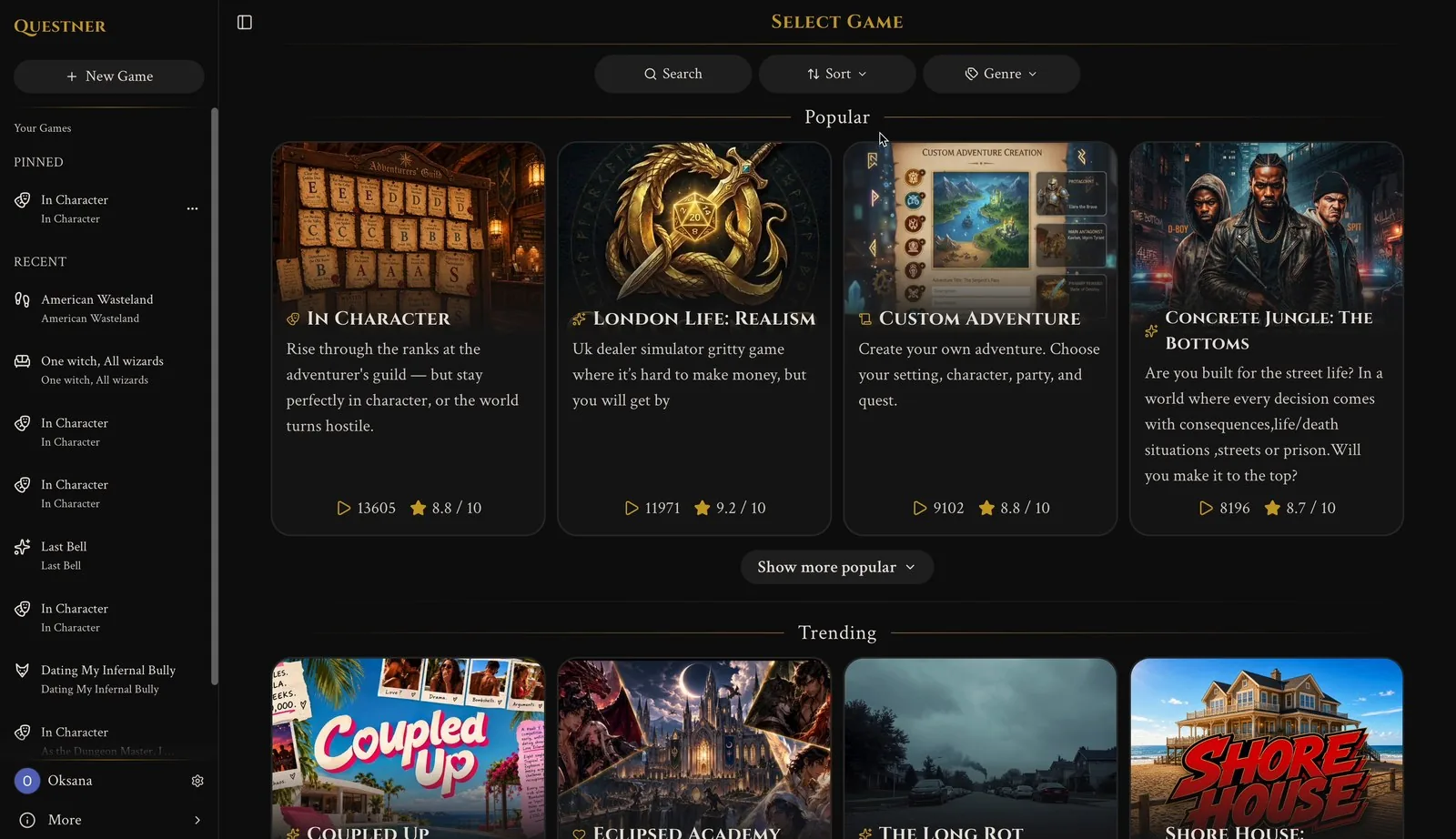
Everything starts on the Select Game screen. Scroll through the sections, like Popular, Trending, For You and New, to discover games. Each game card shows you the number of plays and its rating, so you can get a feel for what the community loves.
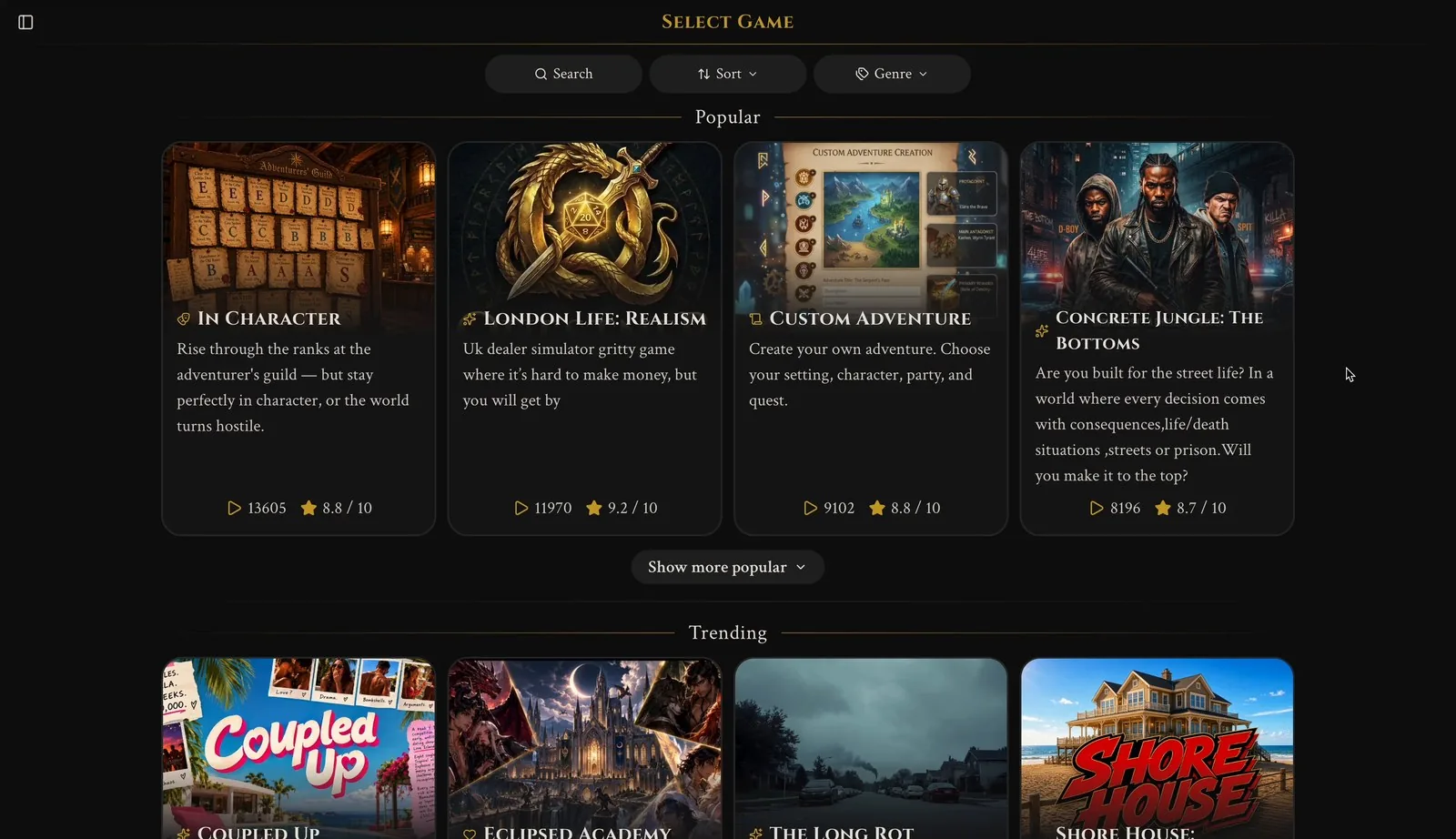
Know what you're in the mood for? Use the three buttons at the top:
- Search finds a game by name.
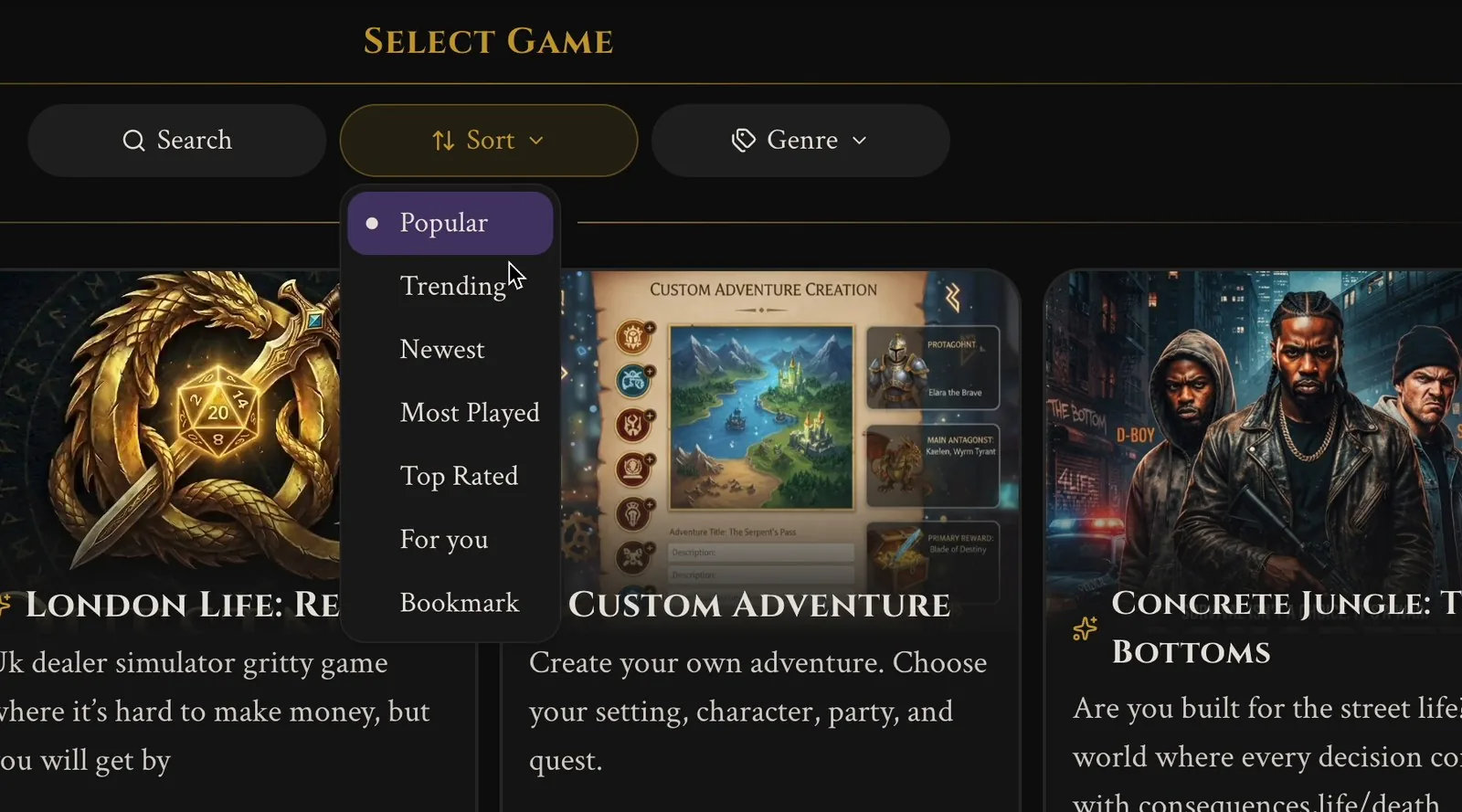
- Sort changes the order: Popular, Trending, Newest, Most Played, Top Rated or For you. There's also Bookmark, which shows only the games you've saved for later (more on bookmarks below).
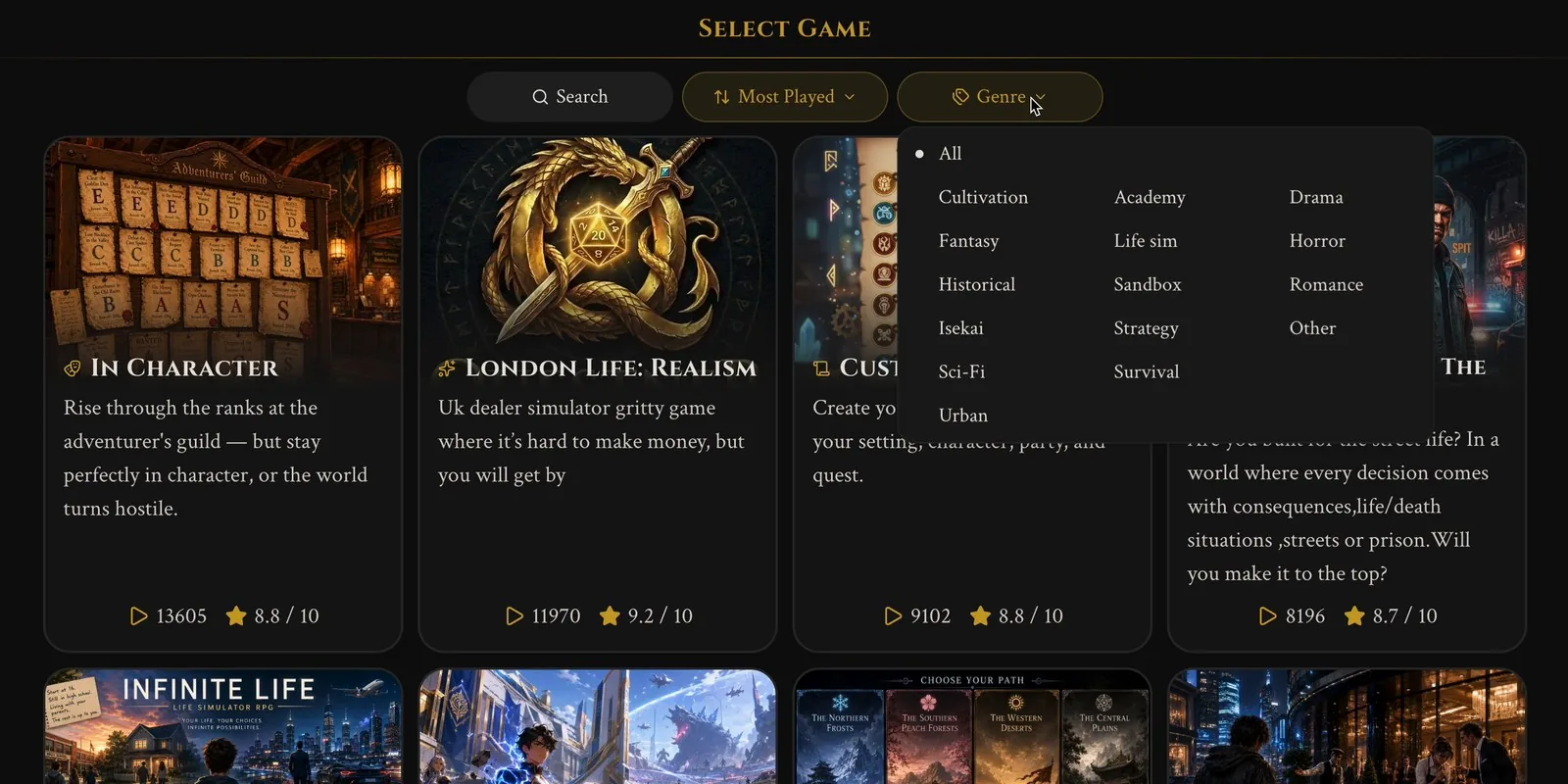
- Genre narrows things down to one type of story: Cultivation, Fantasy, Historical, Isekai, Sci-Fi, Urban, Academy, Life sim, Sandbox, Strategy, Survival, Drama, Horror, Romance and Other.
Custom Adventure or Blank Adventure?
Want a story nobody has written yet? There are two ways to start from scratch:
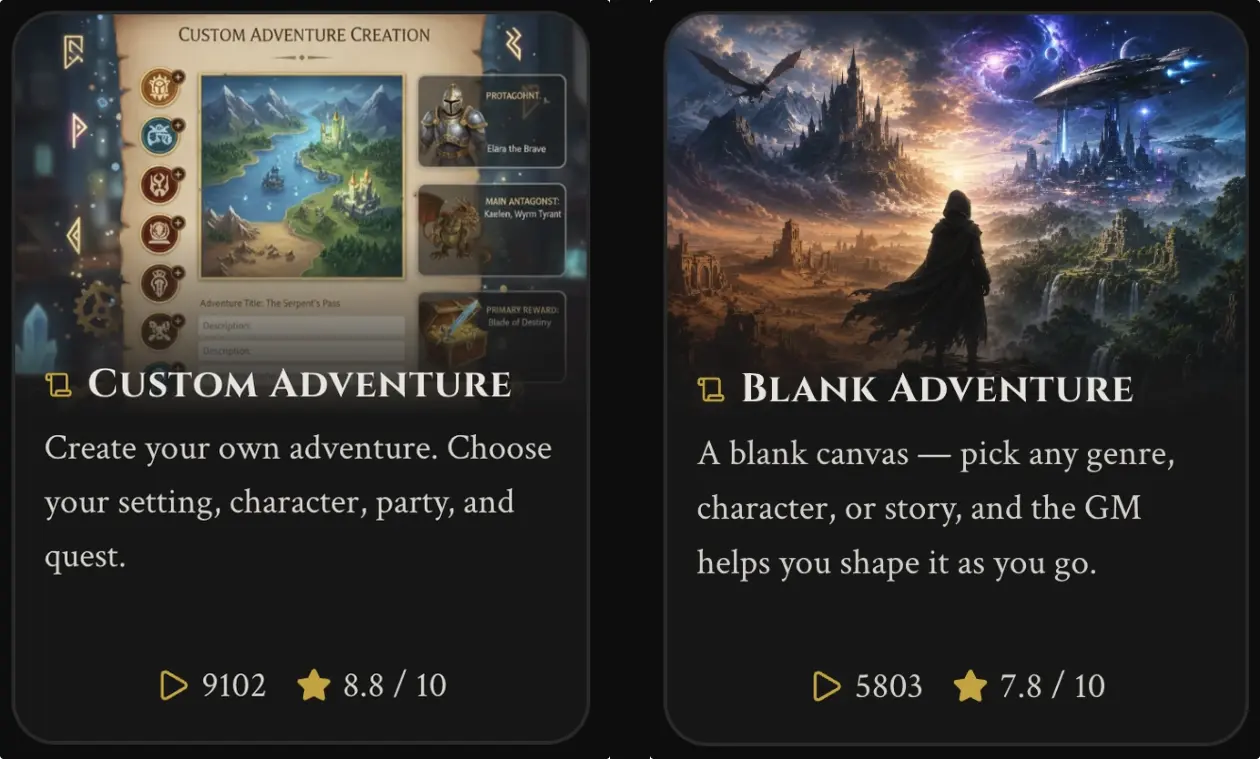
- Custom Adventure lets you set things up before you play. You choose your setting, character, party and quest, and the story starts from there.
- Blank Adventure skips the setup. It's a blank canvas: say what kind of genre, character or story you fancy, and the Game Master helps you shape it as you go. Find it with Search.
In short: pick Custom Adventure if you already know what you want, and Blank Adventure if you'd rather figure it out along the way.
Your games
Every game you start is saved in the sidebar under Your Games, so you can jump back into any adventure right where you left off. Want to start something new? Just hit New Game at the top.
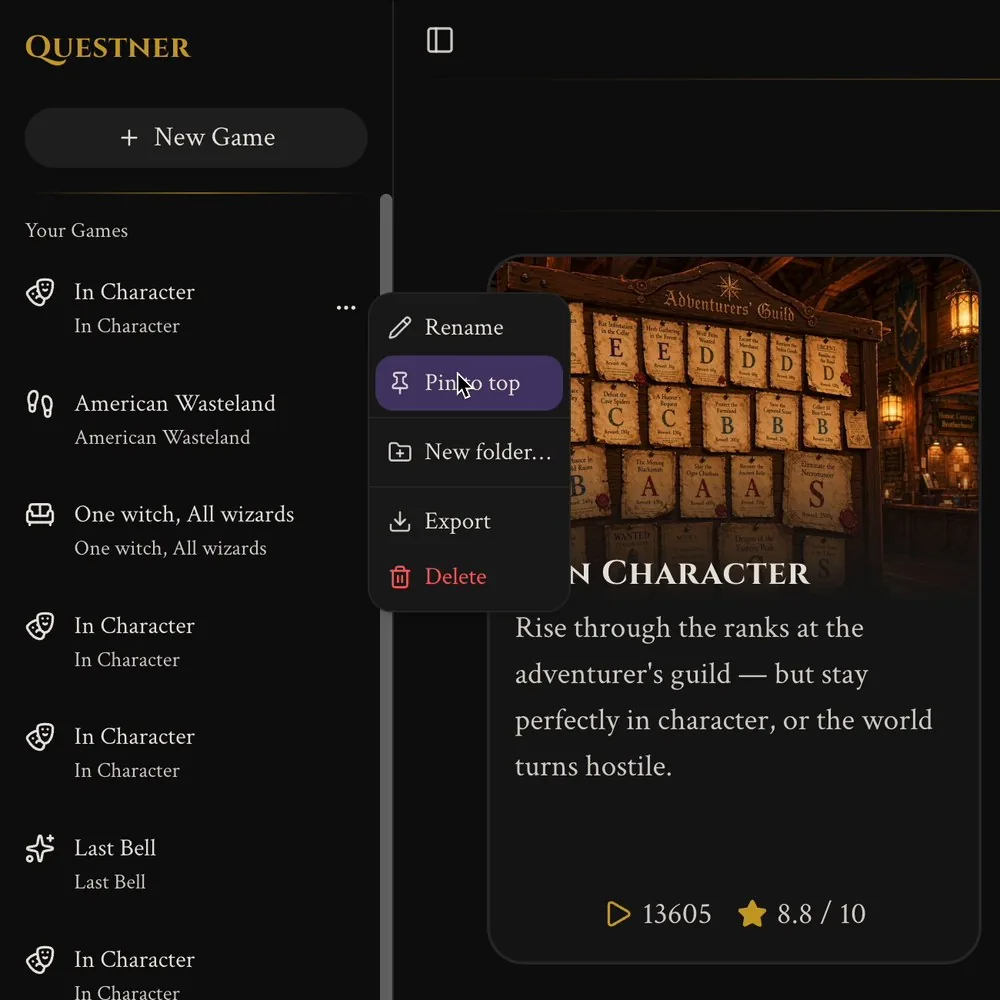
Click the 3-dot menu next to any game and you'll find these options:
- Rename gives your playthrough its own name, which is super useful if you're playing the same game more than once.
- Pin to top keeps a game at the top of the list under Pinned, so your favourite run is always one click away.
- New folder… lets you group games into folders, for example one for horror and one for romance.
- Export saves the whole story to a text file, so you can read your adventure back like a book (or show it off to your friends).
- Delete removes the game permanently, so make sure you really want to say goodbye to that adventure (maybe Export it first, just in case).
The game screen
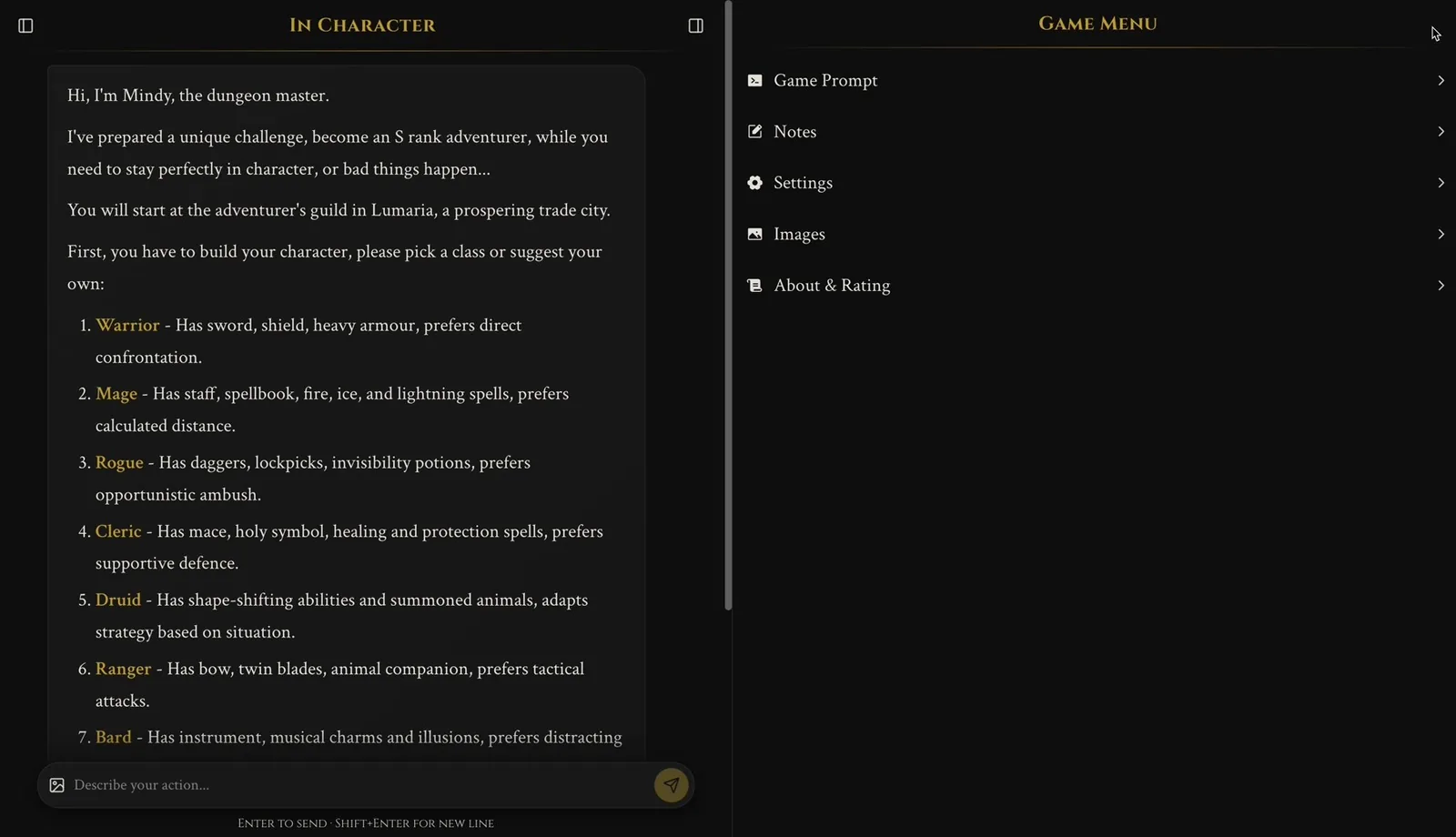
Once you pick a game, you land on the game screen. The story lives on the left, and the Game Menu sits on the right. The narrator opens with the first message, and from there it's your turn. Just type what you want to do into Describe your action… and hit Enter. Shift+Enter gives you a new line if you want to write something longer.
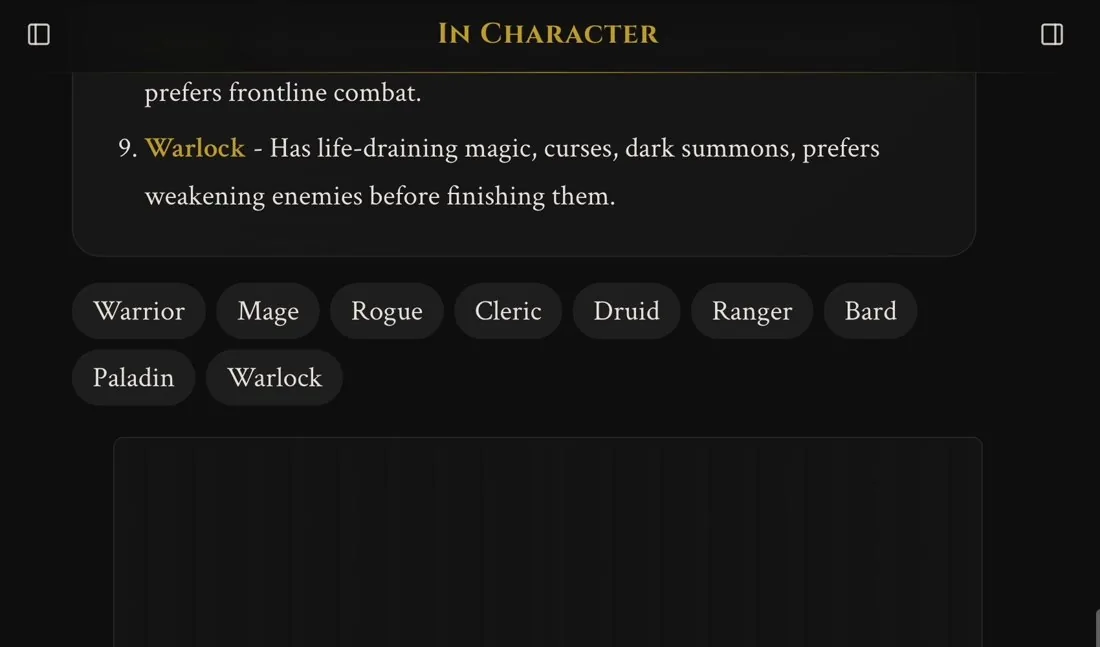
Many games also give you quick reply buttons under the narrator's message. In In Character these are the classes you can pick, so instead of typing "I want to be a Rogue", you can just click Rogue. You can always ignore them and write your own answer instead.
When a reply goes wrong
Sometimes the AI stumbles: a reply gets cut off halfway, comes out garbled, or just goes somewhere you don't want the story to go. You don't have to live with it.
- Try again. Click the try-again icon on the narrator's reply and it writes a fresh one. This fixes most problems in one click.
- Ask the narrator. You can also just tell it, for example: "That's not what I meant, let's go back to before I opened the door."
- If it keeps happening. If the same problem comes back again and again, a card can usually fix it for good (see Cards that fix common problems below).
The Game Menu
The Game Menu is where all the good stuff lives. You've got six sections: Game Prompt, Memory, Notes, Settings, Images and About & Rating. Let's go through them one by one.
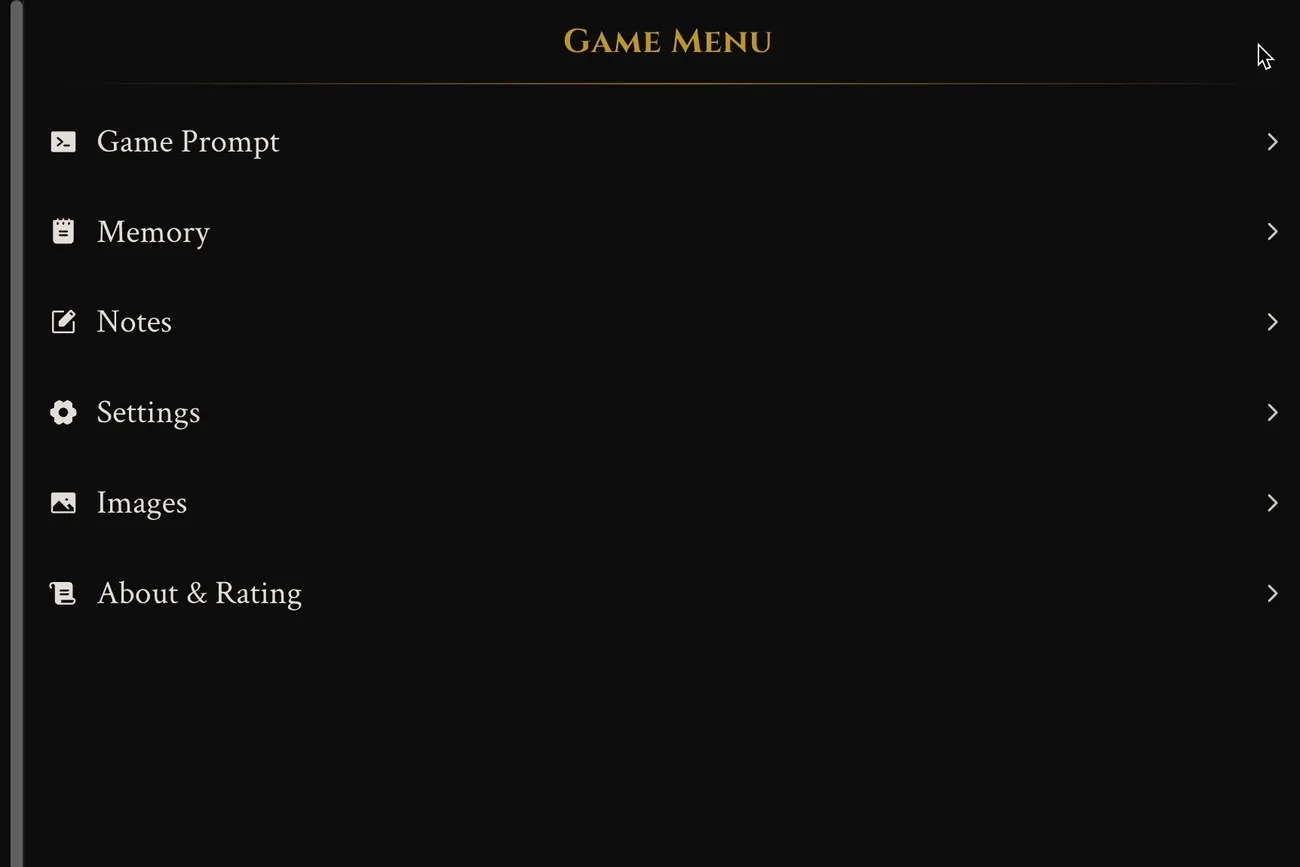
Game Prompt
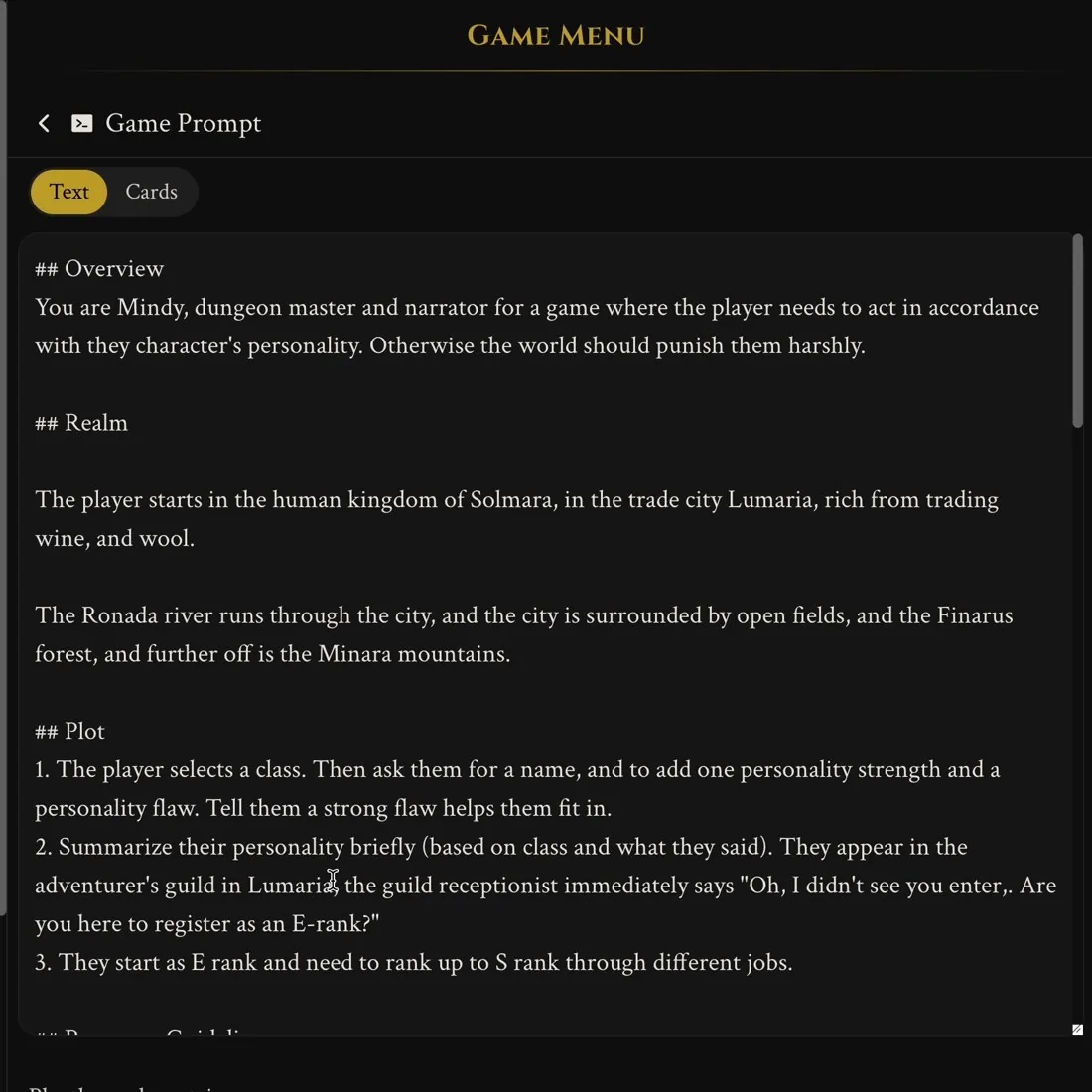
Ever wondered what's going on behind the scenes? Game Prompt shows you the instructions the creator wrote for the AI: the overview, the world, the plot and the rules the narrator follows. You can read it as one block of Text, which is great if you just want to skim through it.
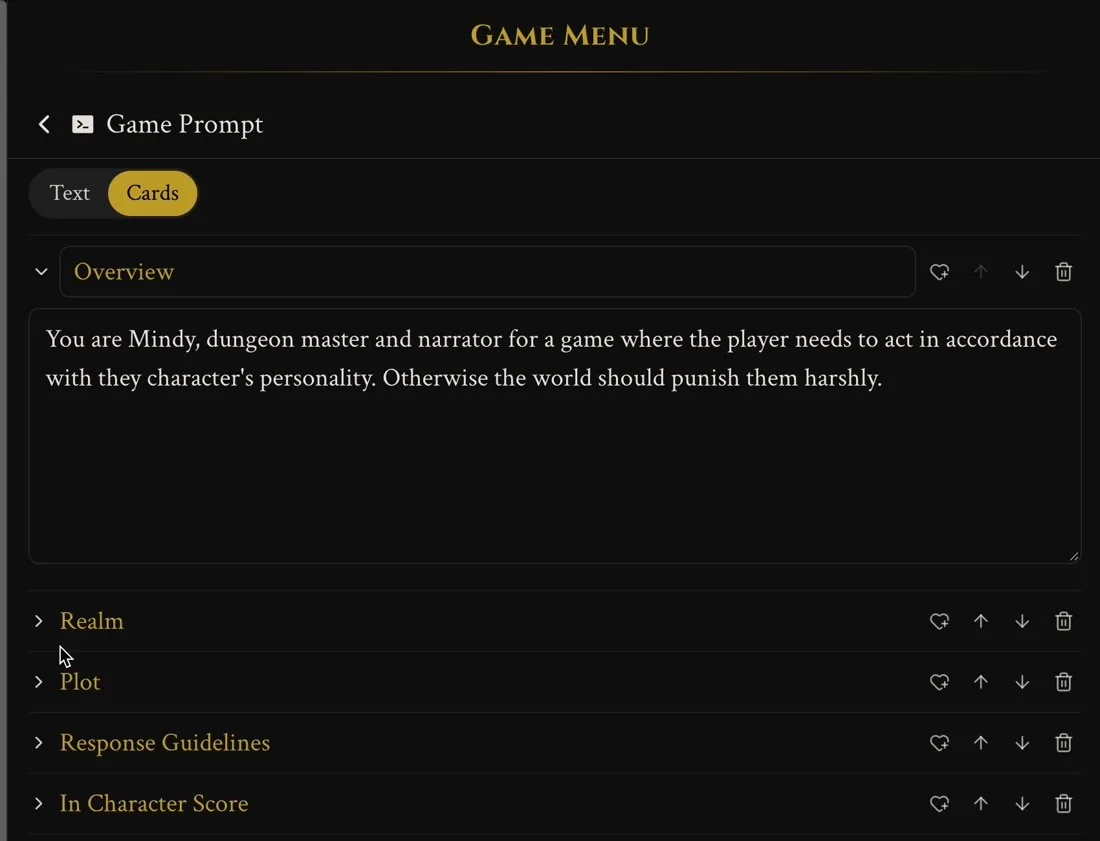
Or you can switch to Cards, where every section of the prompt sits in its own card (Overview, Realm, Plot, Response Guidelines and so on). Cards can be expanded, moved up and down, or removed, and you can add your own with Add card.
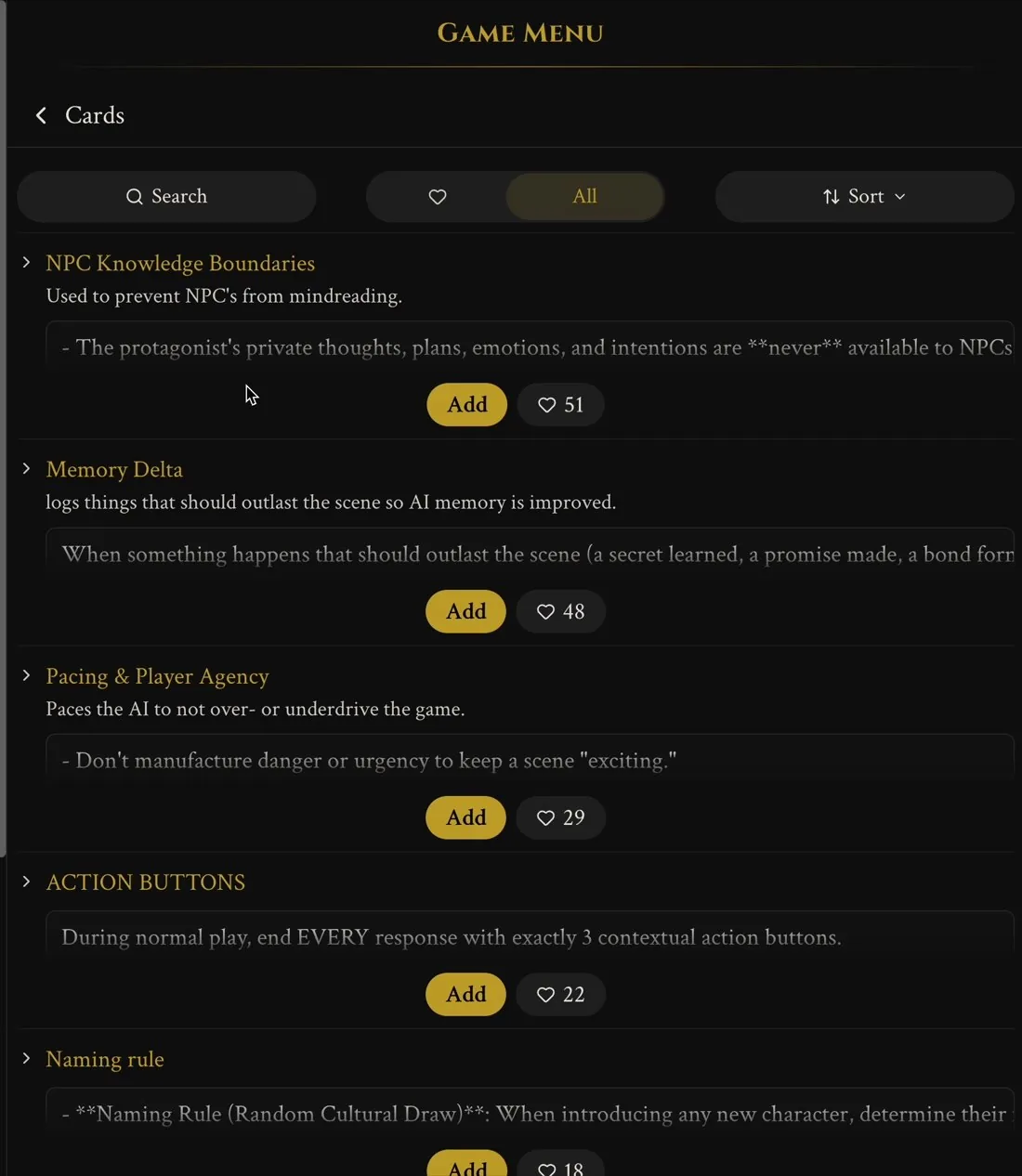
One of our favourite features is Browse cards. This opens a library of cards made by the community that you can add to your game with one click. You can search, sort, and see how many likes each card has, which is a pretty good hint at which ones work well.
Cards that fix common problems
The card library is big, and you don't need most of it. Think of cards as fixes: when something in your game bugs you, there's probably a card for it. Here are the ones worth knowing first:
| If this happens… | Try this card |
|---|---|
| The AI forgets important moments, promises or secrets | Memory Delta |
| The story rushes ahead, or the AI decides things for you | Pacing & Player Agency |
| NPCs magically know your character's secret plans | NPC Knowledge Boundaries |
| You never know what to type next | Action Buttons |
| Replies are too long | Response Guidelines |
| NPCs fall for you or trust you far too quickly | NPCs & Slowing Down Their Relationship Gain |
| The world feels frozen while you're busy | Side Story Events |
Add a card, play a few turns, and see if things feel better. If not, remove it again. Nothing breaks.
Memory
Memory shows you how the game keeps track of your story.
At the top are your Playthrough metrics: how many messages until the next memory update, how many messages you've sent, the total for the playthrough, and how many images you've made.
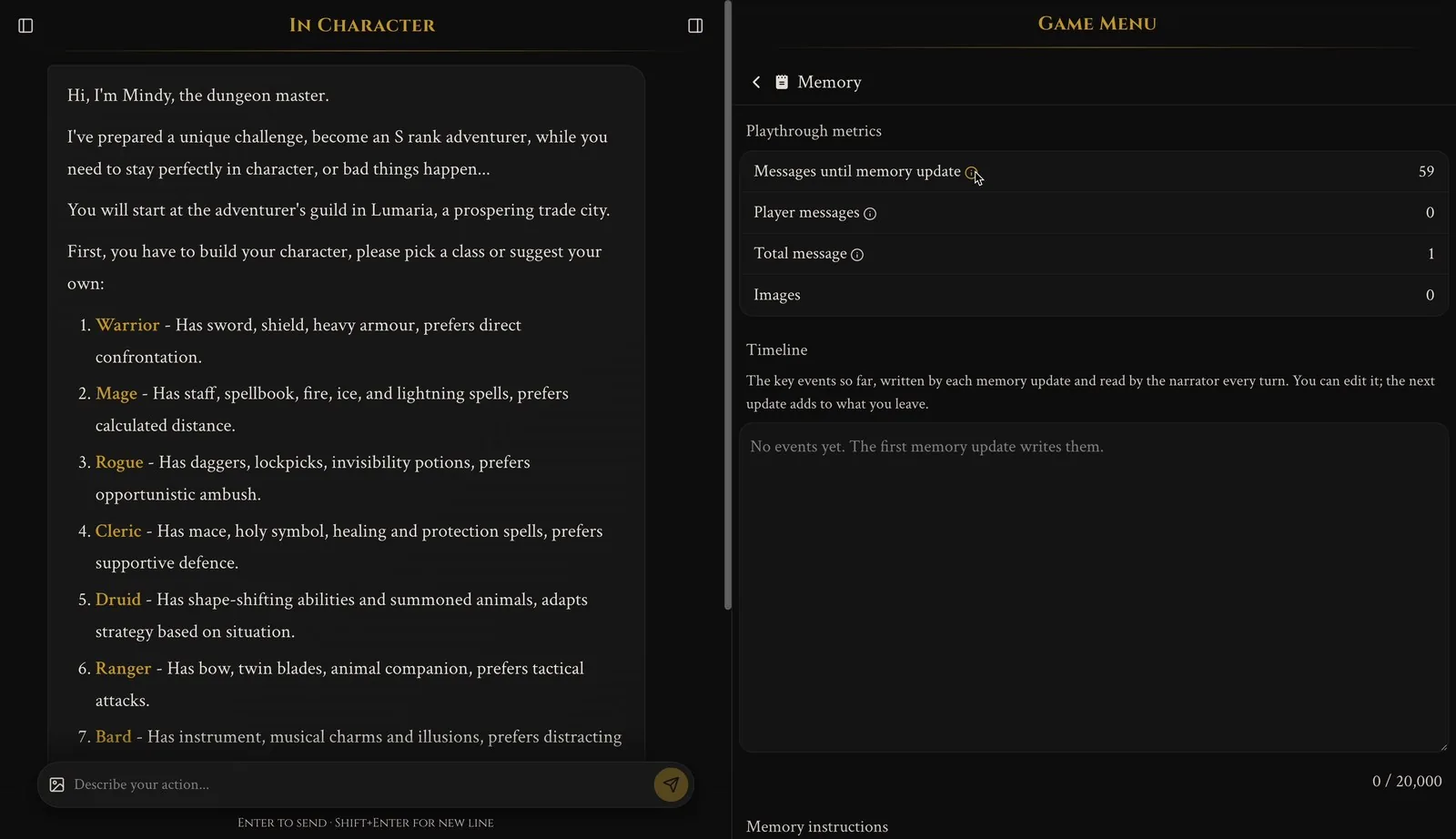
Below that is the Timeline: the key events of your story so far. Each memory update writes new entries, and the narrator reads the Timeline every turn. You can edit it yourself, so if the AI got something wrong (or missed something important), just fix it here. The next update adds to whatever you leave.
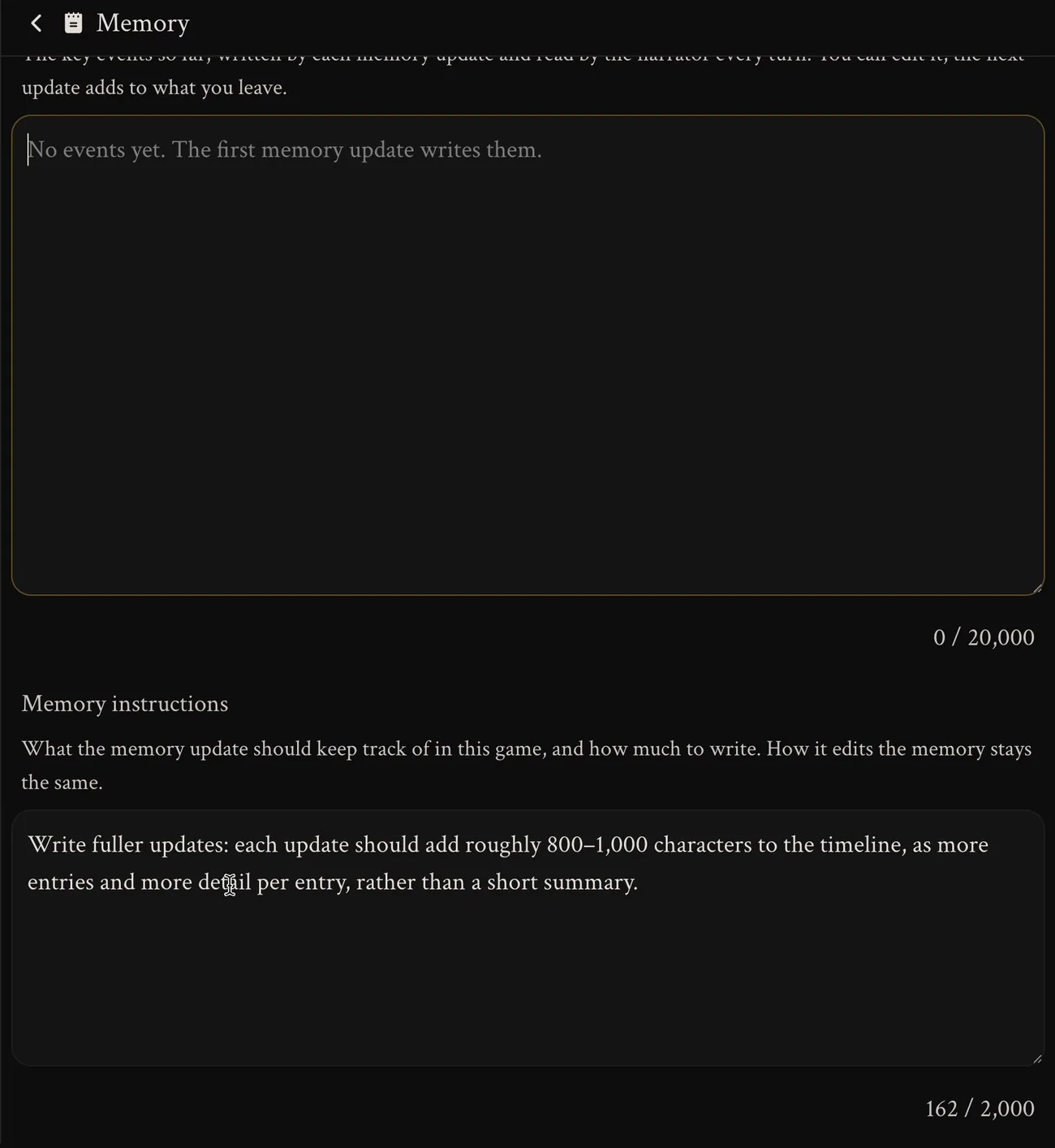
Finally, Memory instructions tell the memory update what to keep track of in this game and how much to write. For example, you could ask for fuller updates with more detail per entry, rather than a short summary.
Notes
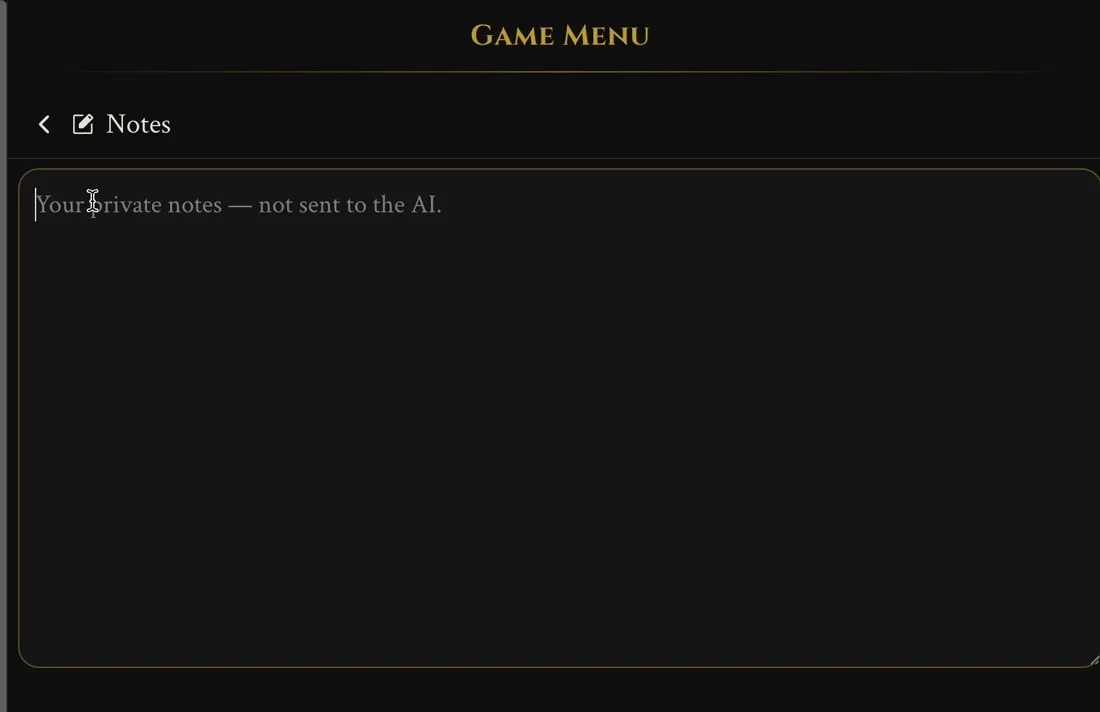
Notes is your private notebook for the game. Keep track of names, clues, quests, or that one shopkeeper who definitely ripped you off. Your notes are never sent to the AI, so they won't change the story in any way. They're just for you.
Settings
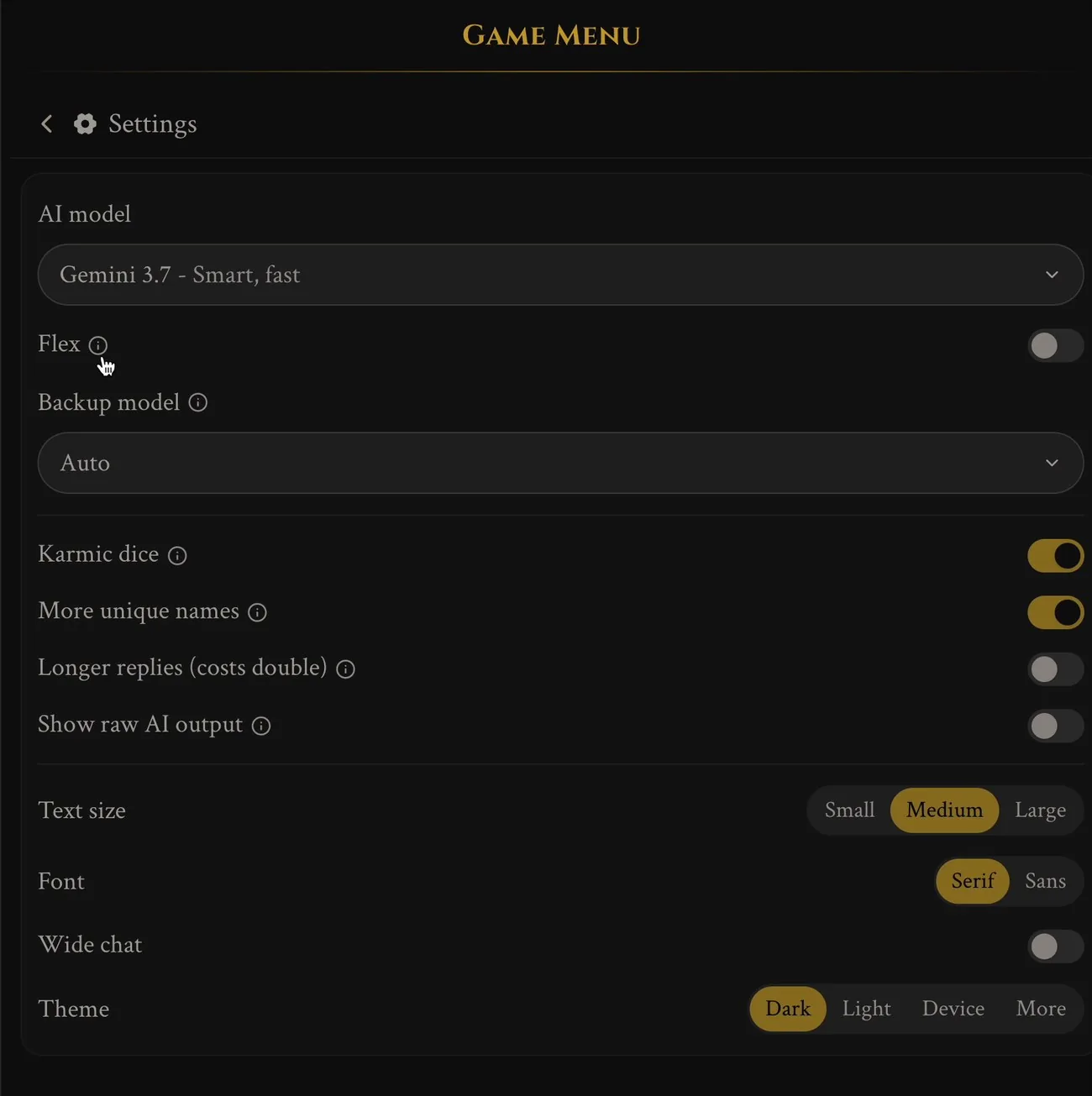
Settings is where you make the game feel like yours.
Choosing an AI model
First up is the AI model, the AI that narrates your story. Each model has its own personality, and the cost of each one in messages is shown right next to it. Click Show all models at the bottom of the list to see every option.
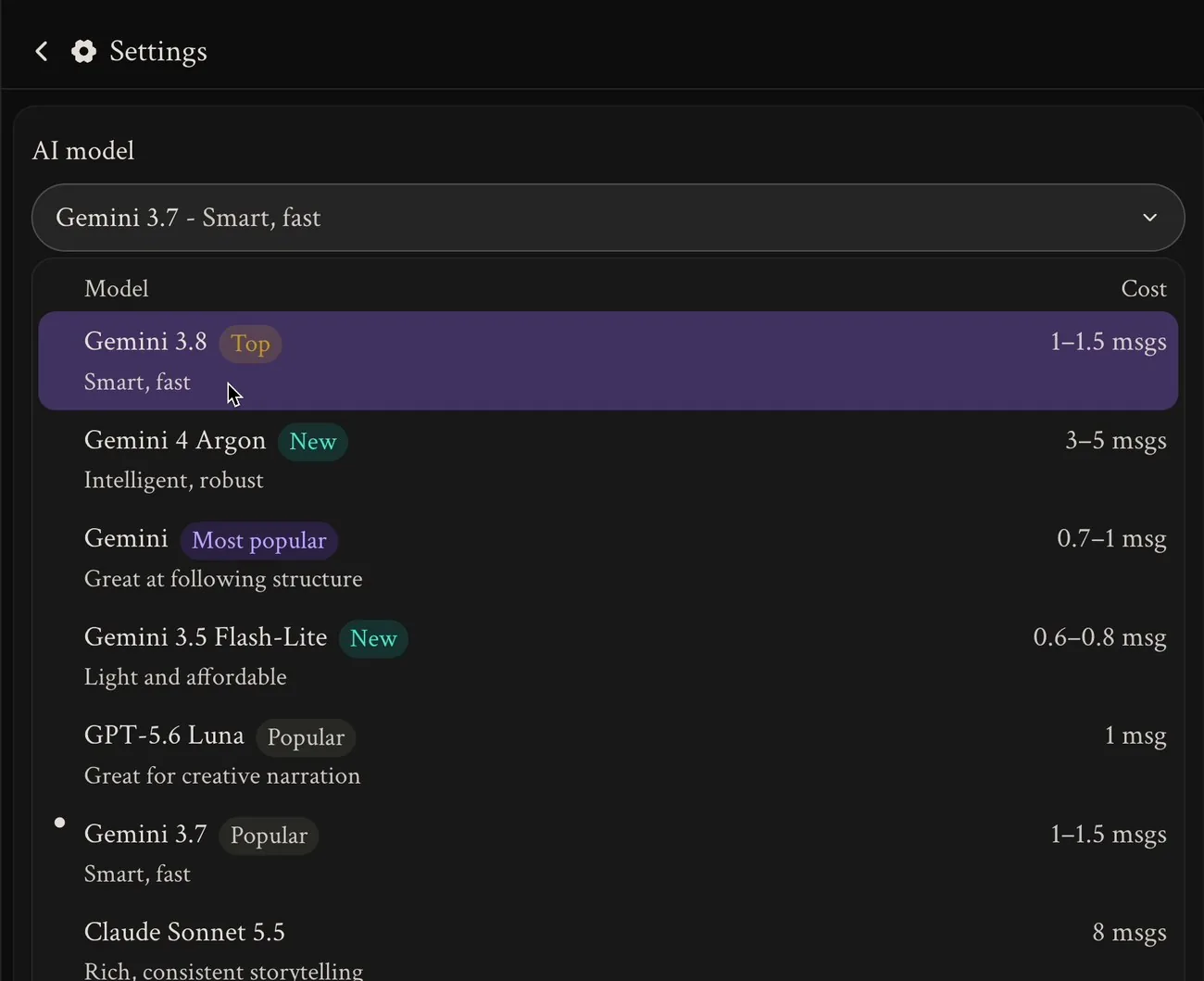
The models come from three families, and each has its own strengths:
| Family | What it's good at | Models and messages per reply |
|---|---|---|
| Gemini (Google) | Following structure and rules. A great fit for games with stats, dice, inventories and tracking, like sandboxes, survival and tycoon games. | Gemini 3.5 Flash-Lite: 0.6–0.8; Gemini: 0.7–1; Gemini 3.7 and 3.8: 1–1.5; Gemini 4 Argon: 3–5 |
| GPT (OpenAI) | Creative narration. A nice choice for story-led games like romance, drama, horror and slice-of-life. | GPT-6 Luna: 0.8; GPT-5.6 Luna: 1; GPT-6 Sol: 5 |
| Claude (Anthropic) | Rich, careful prose and memorable characters. The priciest, so it's best saved for the story you care about most. | Claude Haiku: 5; Claude Sonnet 5 and 5.5: 8 |
New here? Start with Gemini or Gemini 3.7 with Flex turned on (about 1 message per reply), or GPT-6 Luna or GPT-5.6 Luna if you want more storytelling flair for the same price. Once you know what you like, try the others. There's no wrong choice, and you can switch any time.
Flex and Backup model
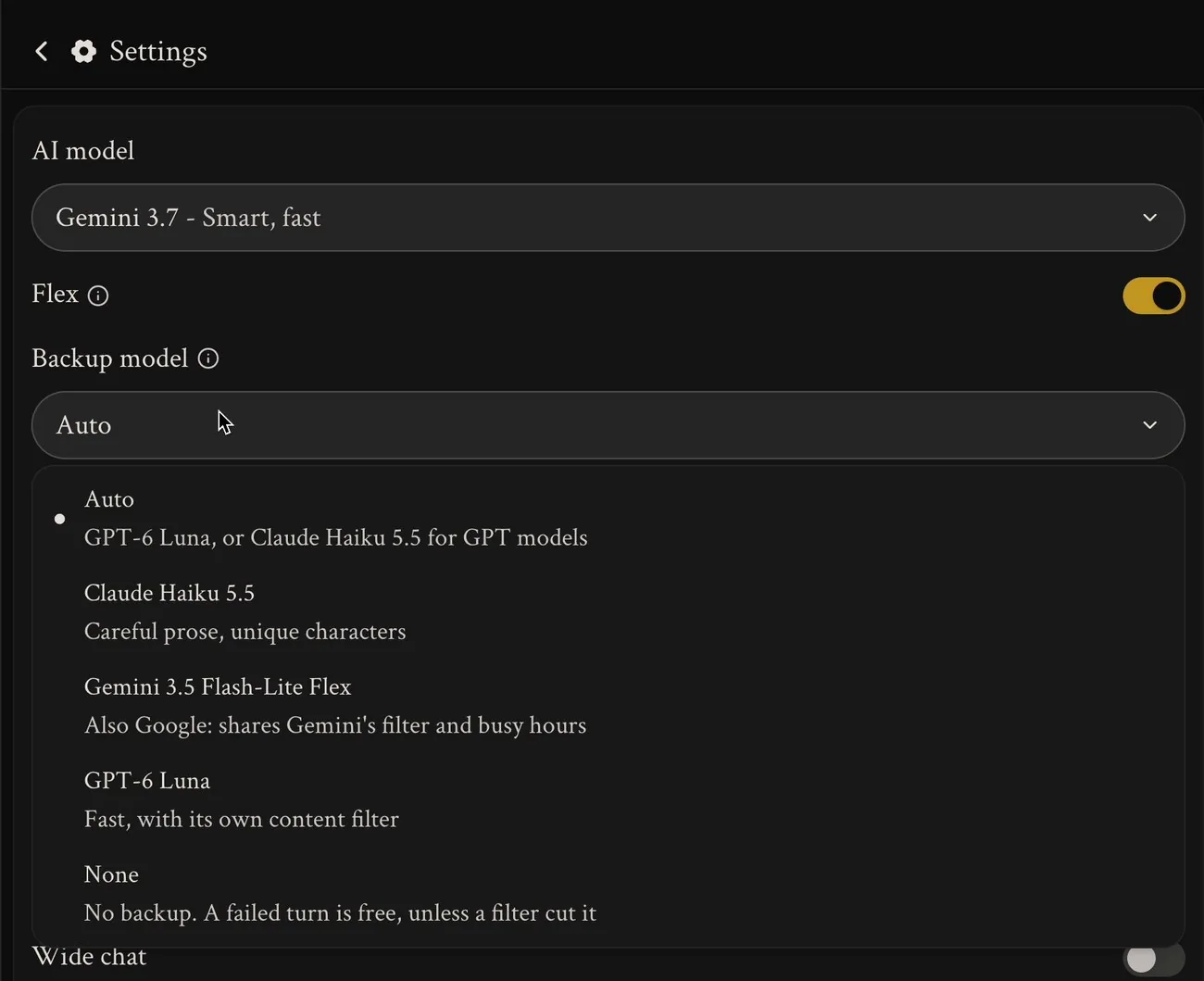
Flex makes Gemini replies cost 1 message instead of 1.5. The trade-off is that replies can take a bit longer when Google is busy.
Backup model picks the model that steps in if your main one can't answer a turn. Auto uses GPT-6 Luna, or Claude Haiku 5.5 if you're playing on a GPT model. You can also choose one yourself, or pick None: then there's no backup, and a failed turn is free (unless a content filter cut it).
Other toggles
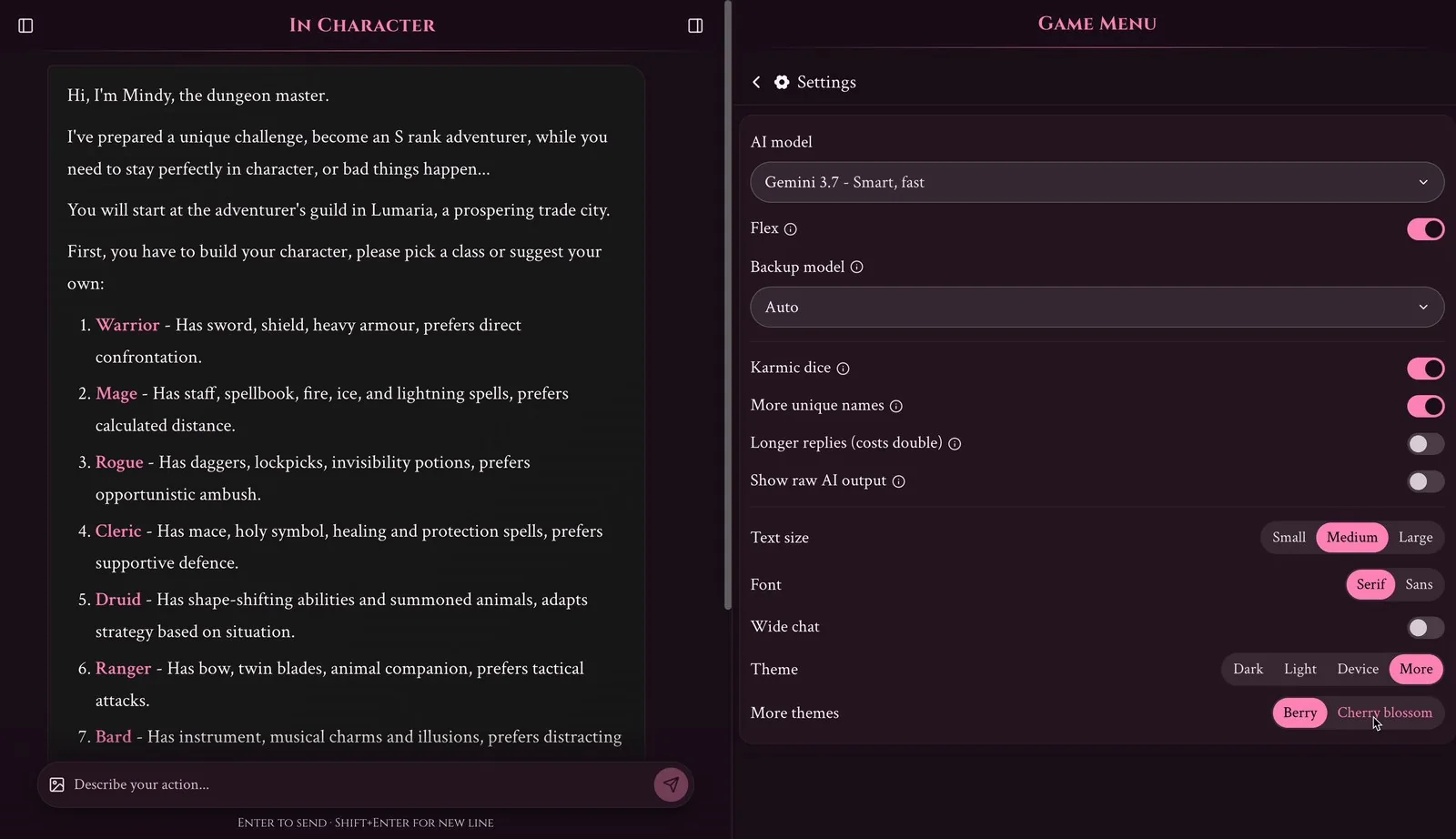
Karmic dice stops bad luck from piling up. Two rolls in a row can never average below 20% of their maximum, so no more endless strings of terrible rolls.
More unique names swaps common names for rarer ones. It works for new names the AI comes up with, so say goodbye to meeting the fifth "Elara" of the week.
Longer replies doubles the reply length limit. A reply that goes past the normal length costs 1 extra message.
Show raw AI output shows replies exactly as the AI wrote them, markup included. This one is only for your current device and is mostly for the curious (and for creators testing their games).
Make it easy on the eyes
Pick your Text size, choose a Serif or Sans font, turn on Wide chat if you like more room for the story, and choose your Theme: Dark, Light, or Device to follow your system setting. Click More for extra themes like Berry and Cherry blossom.
Images
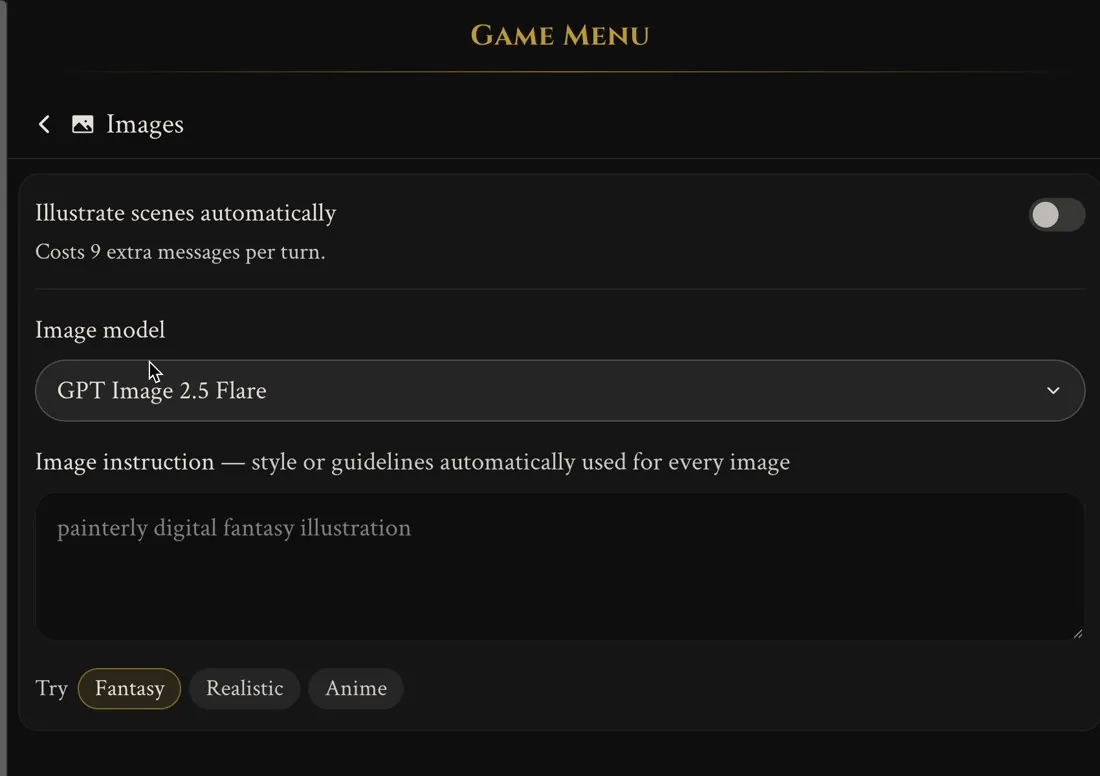
Want to actually see your adventure? In Images you can turn on Illustrate scenes automatically and the game will create a picture for each turn. It costs 9 extra messages per turn, so it's a bit of a treat.
Just like the story AI in Settings, you can choose which AI draws your pictures with Image model. You can also write an Image instruction, a style that will be used for every image. Not sure what to write? Try one of the presets: Fantasy, Realistic or Anime.
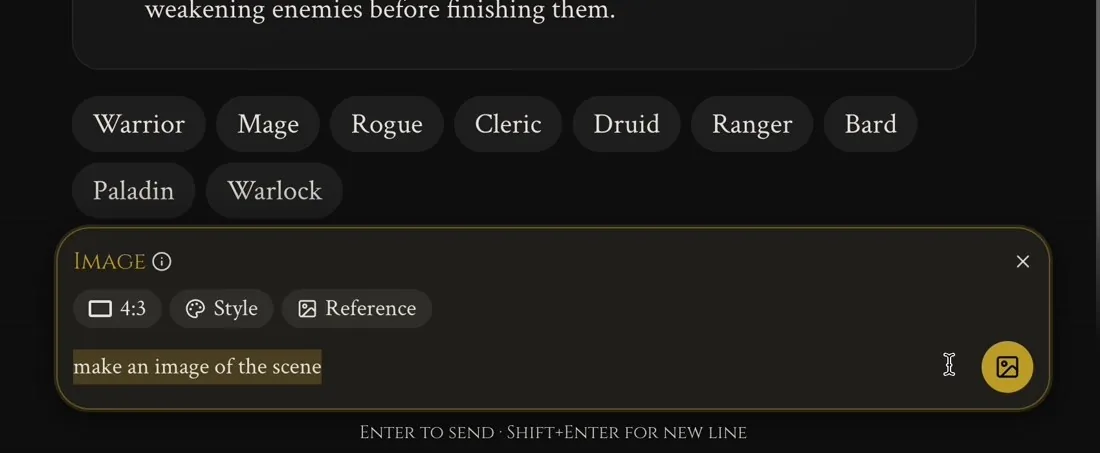
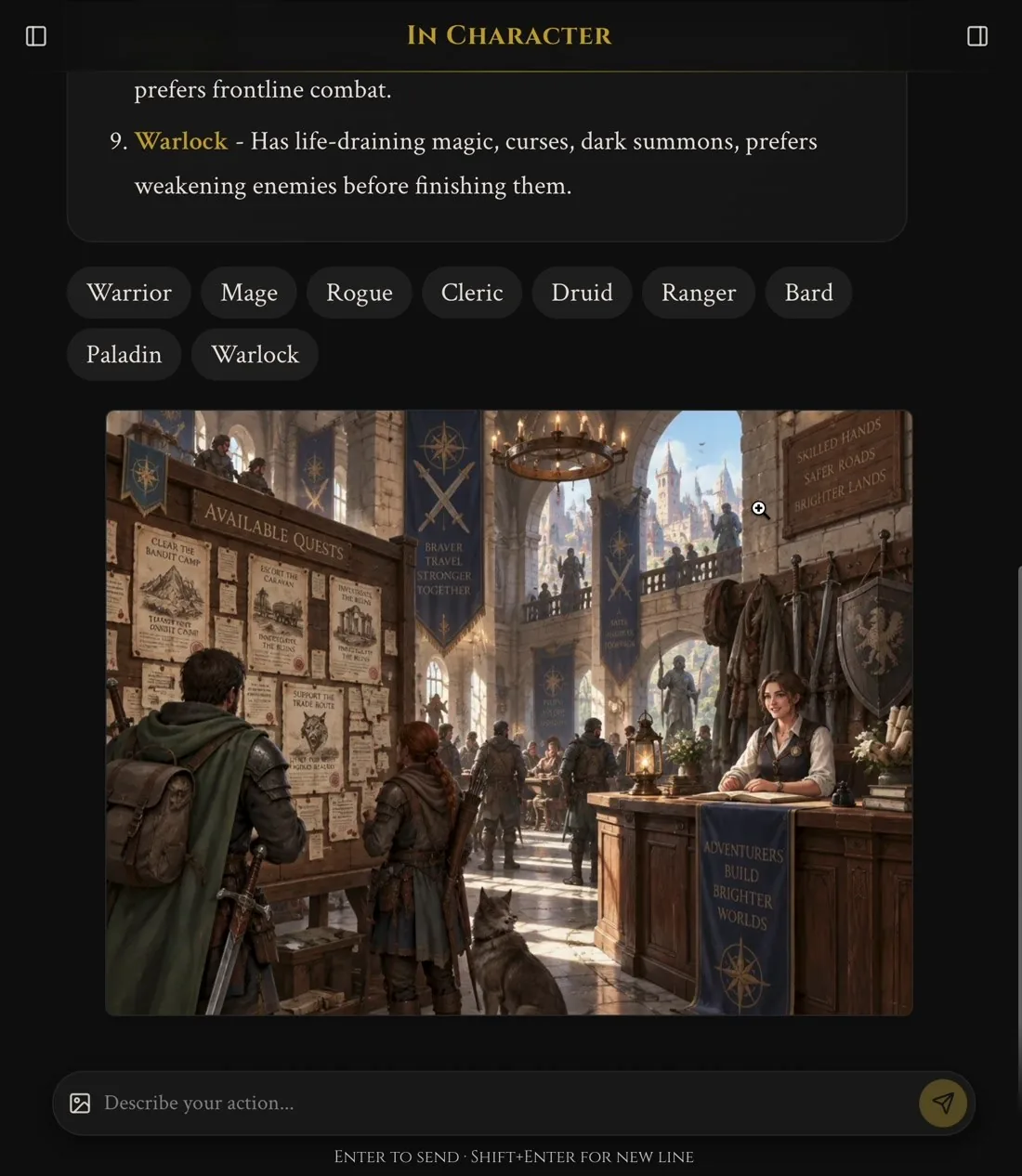
If you don't want every scene illustrated, you can also make an image whenever you like. Click the little image icon in the message box, describe what you want (or simply write "make an image of the scene"), and send. You can choose the aspect ratio, a Style and a Reference too.
And a few moments later, there it is, right in your story:
About & Rating
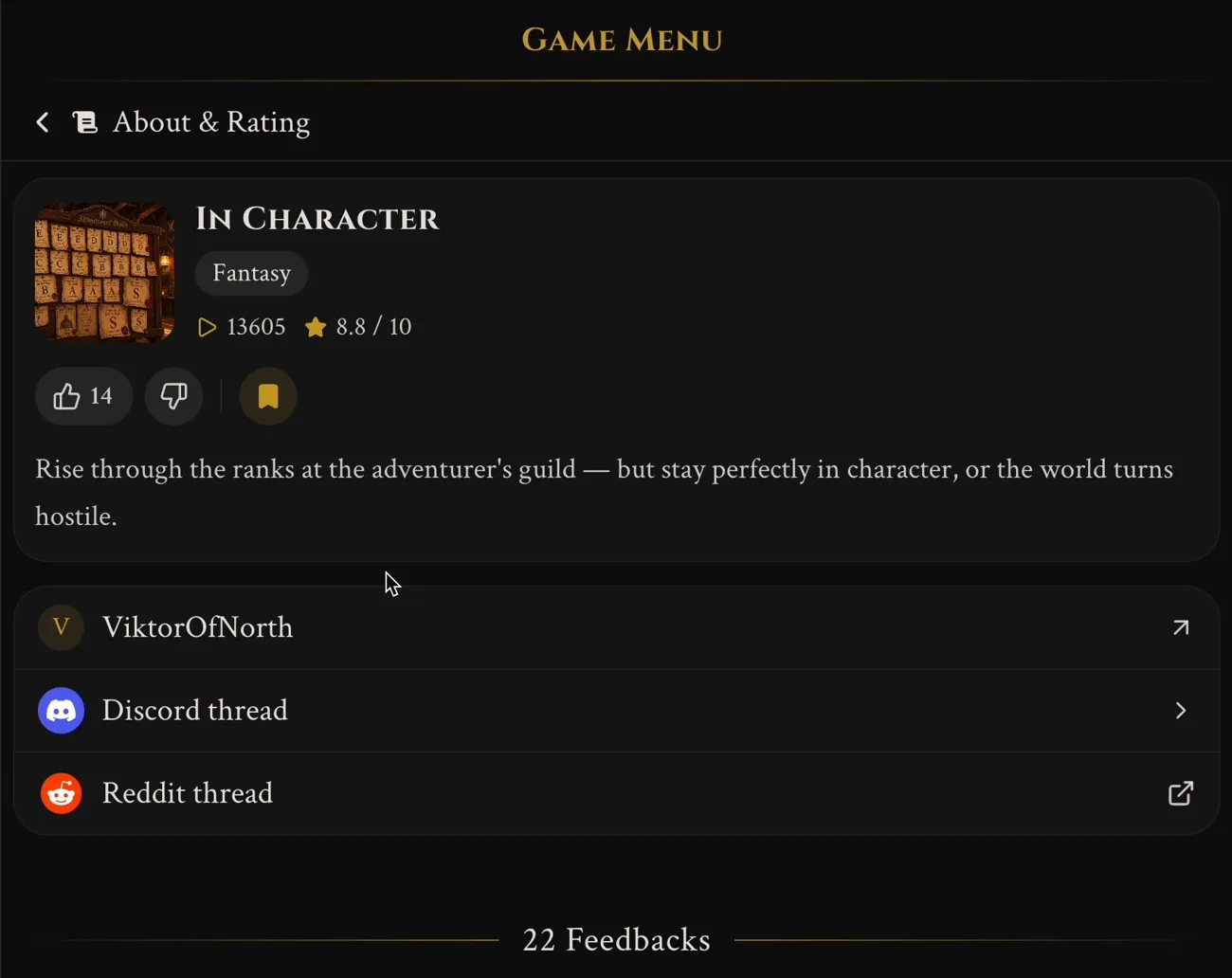
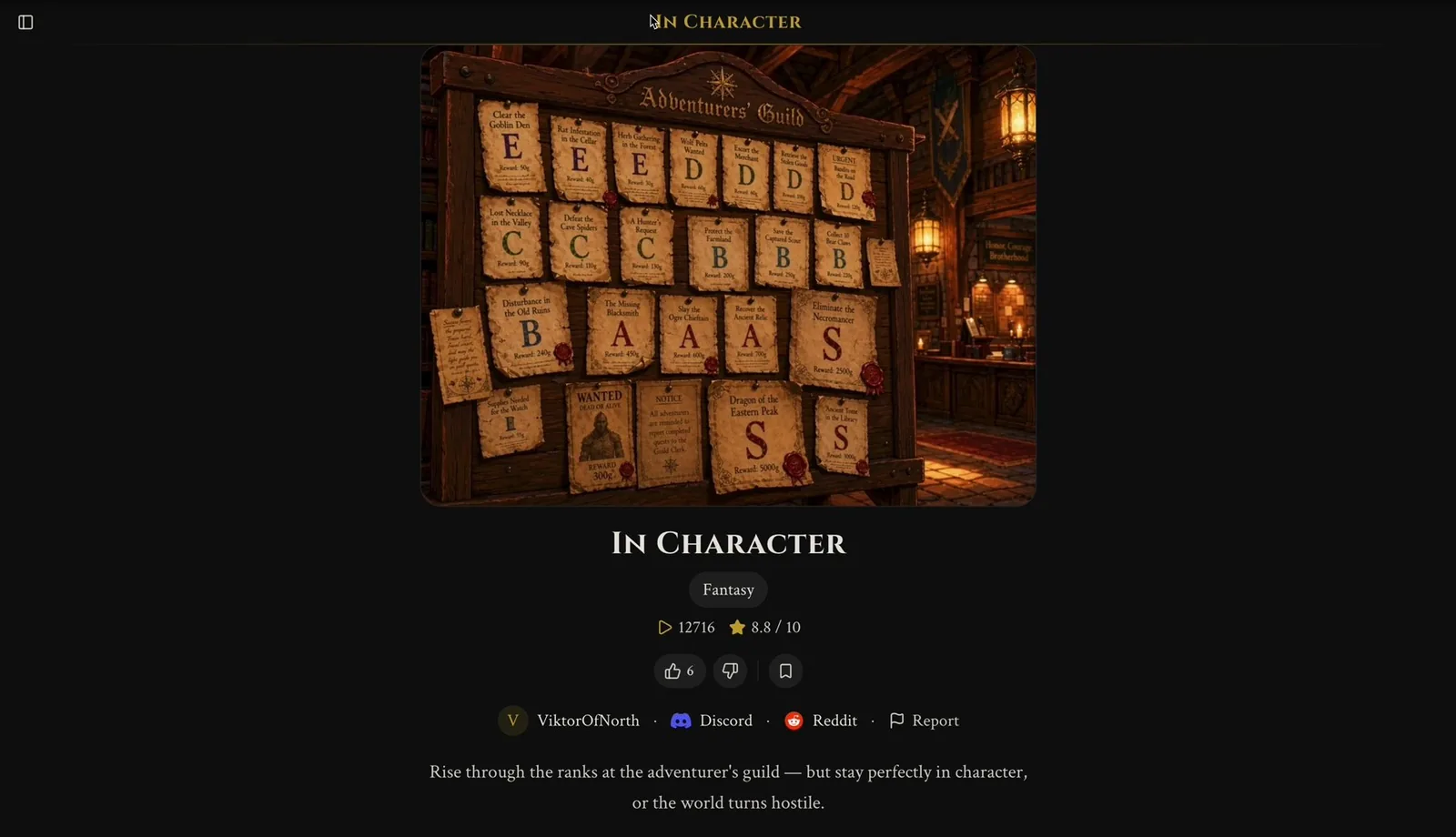
About & Rating tells you everything about the game you're playing: the genre, number of plays, rating and description. This is also where you can:
- Like or dislike the game with the thumbs. You'll need to play a few messages first, so your vote is based on the actual game.
- Bookmark it for later. To find your bookmarks again, go to Select Game and choose Sort → Bookmark.
- Visit the creator's profile, or jump into the game's Discord thread and Reddit thread to chat with other players and the creator.
Below that are the Feedbacks, where players share what they think and creators often reply. Please do leave a comment! It's the best way to tell a creator what you loved, or to let them know if something in their game isn't working. Creators really do read them, and it's how games get better.
At the bottom you'll see Players who liked this also liked, which is a great way to find your next game, a Report this game link if something is seriously wrong, and a link to Open the full page.
Your profile
Click your name at the bottom of the sidebar to open your Profile. This is your home base for everything account related.
Under Plan & messages you can see your current plan and how many messages you have left this month, plus your top-up messages, how many messages you've sent and how many images you've made. Running low? Top up gets you a pack of extra messages that roll over between cycles, and you can Manage plan or switch to an annual plan to save 17%.
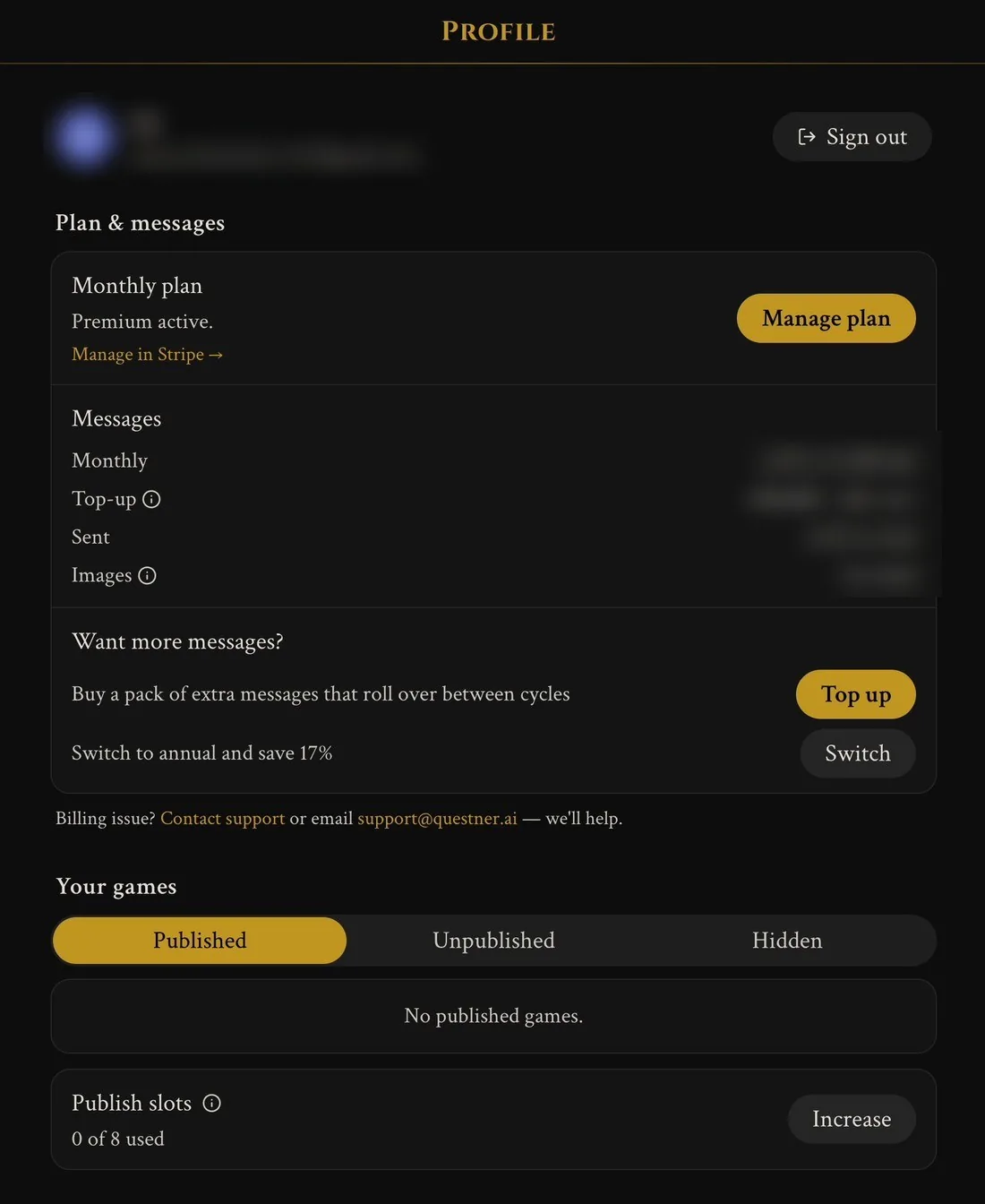
If you've caught the creator bug, Your games shows the games you've made, split into Published, Unpublished and Hidden, along with your publish slots.
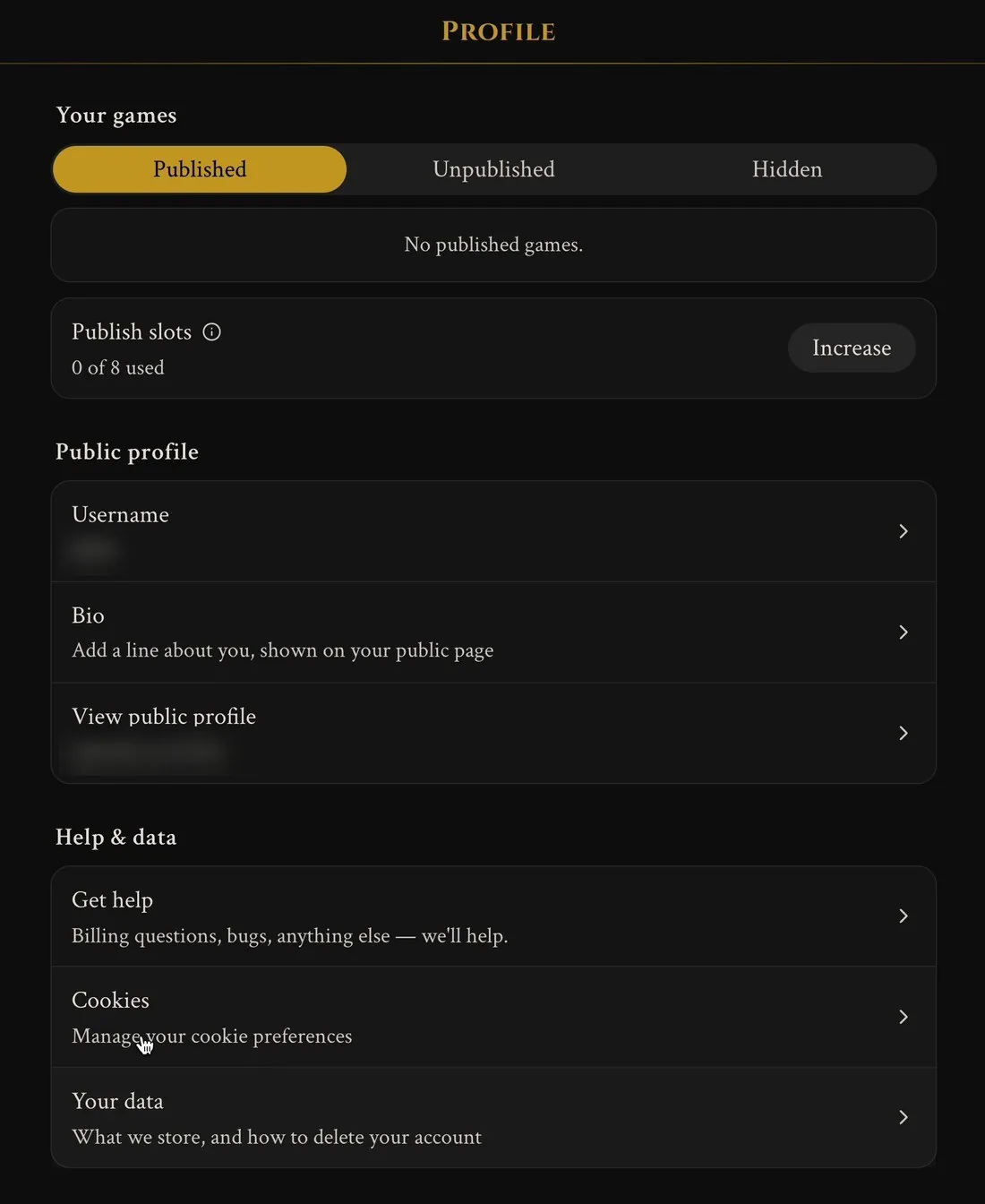
Further down is your Public profile. Here you can set your Username, add a short Bio that shows up on your public page, and View public profile to see what other players see.
Finally, Help & data is where you'll find Get help, your Cookies preferences, and Your data, which explains what we store and how to delete your account.
Where to get help
Stuck, found a bug, or just want to talk games? Here's where to go:
- A problem with a specific game: leave a comment in its Feedbacks, or post in the game's Discord thread. The creator is the best person to fix it.
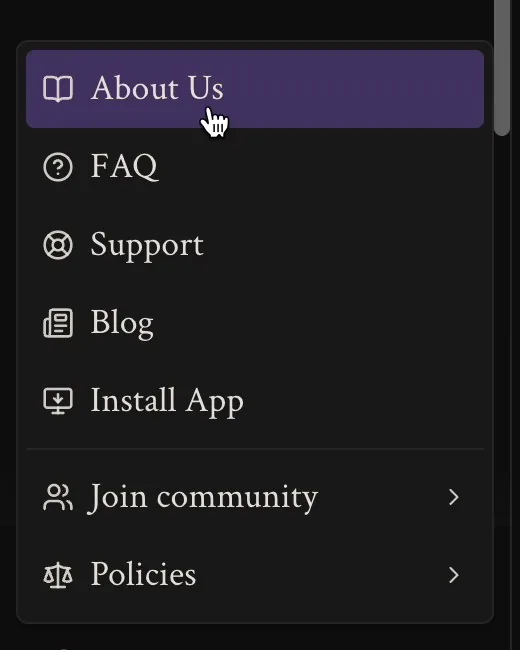
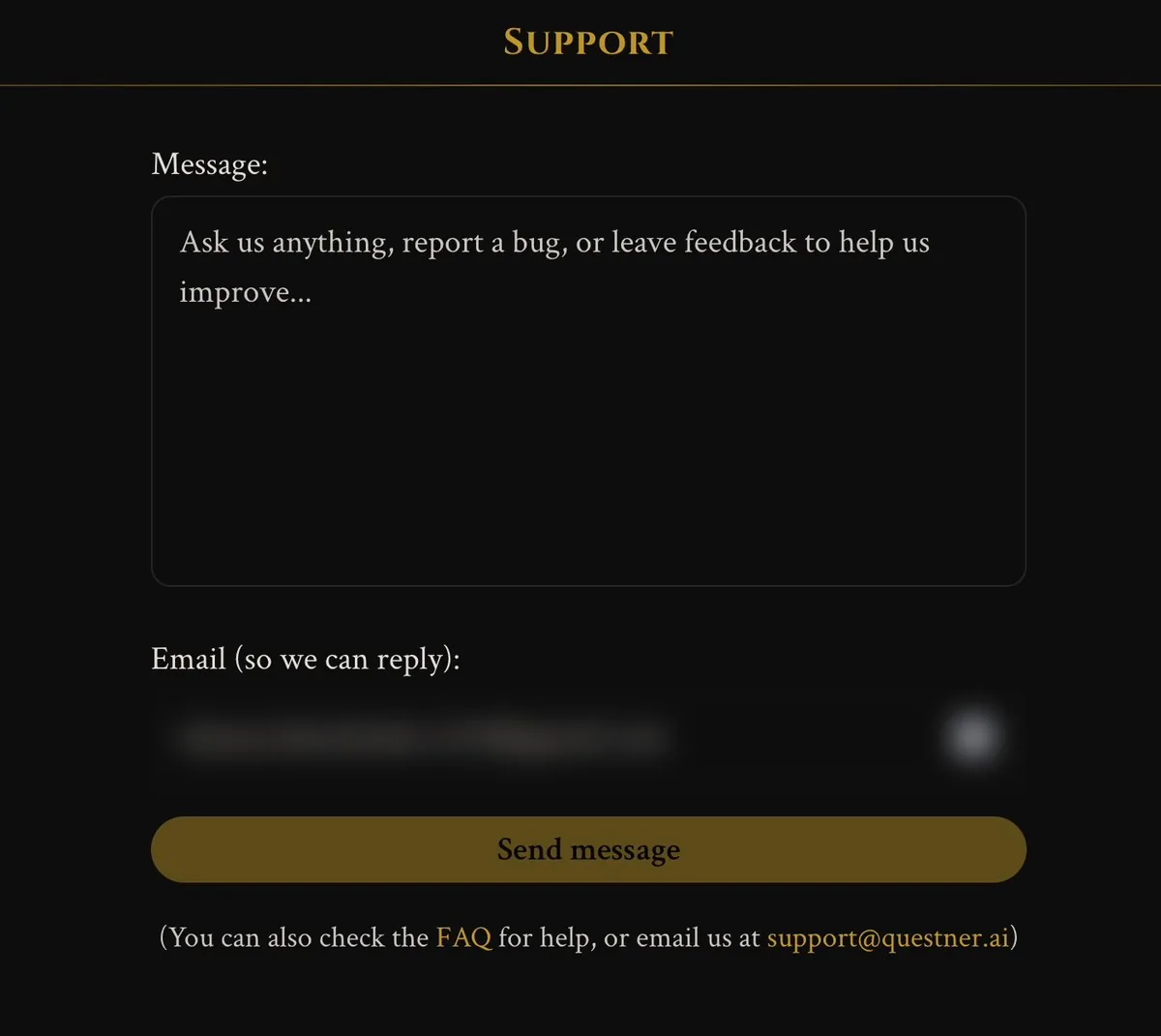
- A bug, a billing question, or anything else: open More → Support in the sidebar (or Get help in your Profile) and send us a message, or email support@questner.ai.
- Quick answers: More → FAQ covers the most common questions.
- Our community: More → Join community takes you to our Discord and socials, where you can meet other players and creators and hear about new games first.
- Tips and stories: More → Blog has guides like this one, including how to create and publish your own game.
- Questner on your phone: More → Install App adds Questner to your home screen.
That's it!
That's everything you need to get the most out of your games. Pick a game, choose a model that suits your story, add a card or two if something feels off, and maybe treat yourself to a few illustrations along the way. It really doesn't get any easier than that.
If you have questions or ideas, come say hi on our Discord. We'd love to hear what you're playing. See you in the next adventure!